How to Make a Photo Collage on iPhone (HEIC Works, No App Needed)
Open the generator in Safari, tap the 11 slots, pick from Photos. iPhone HEIC files convert in the browser automatically, the PNG lands in Files or Photos, nothing is uploaded.
The short version: to make a photo collage on an iPhone without an app, open the generator in Safari, tap each of the 11 slots and pick from Photos. HEIC files are converted to JPEG inside the browser automatically, so nothing needs converting first. Download the PNG, save it to Photos. About five minutes, free, no account.
If you have ever dropped an iPhone photo into a web tool and got “unsupported file type” back, this post is for you. The photo was fine. The tool just did not speak HEIC. Here is what that means, why it happens, and the seven taps that get you from camera roll to finished collage on the phone itself.

The HEIC problem, in one paragraph
iPhones save photos as HEIC (the container is HEIF), a format that takes up less space than a JPEG for the same picture. Good for your storage, bad for the open web: many browsers and upload forms still expect JPEG or PNG. So the file bounces, or uploads and then fails silently, or shows a grey box where a photo should be.
The two workarounds people use both work and both are annoying. One: Settings → Camera → Formats → Most Compatible, which makes every future photo a JPEG and costs you storage from then on. Two: share each photo to Files or email it to yourself, which converts it along the way, one photo at a time, eleven times.
You need neither here. When you pick a HEIC in the generator, Safari hands the file to the page, and the page converts it to JPEG on the spot, on the phone. Your camera settings stay as they are, and the original in Photos is untouched. It also means the photo never goes anywhere to be converted, which is the whole point of the no-upload post.
How to make a photo collage on iPhone, step by step
- Open Safari and go to floxa.app/do-it-for-her. No download, no App Store, no account.
- Tap the big slot in the middle of the frame. The iPhone photo picker opens; choose the photo that is the reason, not the posed one.
- Crop it. Every slot has its own crop tool. Drag with one finger, pinch to zoom, until the face is actually in the frame.
- Fill the other ten. Tap, pick, crop, repeat. Blurry phone snapshots are fine in the small slots; they forgive a lot. Five minutes covers all eleven if you are not agonising.
- Pick the sign. HER, HIM or THEM; the switch is on the page and your photos stay where they are.
- Download. Tap the download button. Safari saves the 980×700 PNG to Files → Downloads by default.
- Move it to Photos. Open Files → Downloads, long-press the image, then Share → Save Image (or Save to Photos). From there you can send it, set it as a wallpaper, or AirDrop it to a Mac.
If step 6 seems to produce nothing, check whether Safari showed a small banner asking to confirm the download and you tapped past it. Tap the download button again and answer Download. That prompt is a Safari habit, not an error.
iPad and Mac work the same way
On an iPad it is identical: Safari, the same 11 slots, the same photo picker, the same Files → Downloads destination. On a Mac, any browser opens the generator, and HEIC files convert exactly as they do on the phone. The download lands in your Downloads folder as a normal PNG.
The one thing that changes across devices is the size of the crop handles, so on a Mac you get a little more precision. Nothing about the result differs.
Printing it from the iPhone
For a quick print, share the PNG to any AirPrint printer and pick 5×7 in the paper size; the collage is 7:5, so 5×7 needs no cropping at all. For anything going in a frame, the HD export (2800×2000 pixels, about 300 dpi) is the file to send to a lab. The print-size guide lists which sizes fit without a crop and which need a white margin. The click-by-click for the whole collage, on any device, is in the how-to post.
The vision board on iPhone, same rule
The lock screen version of the vision board follows the same path: Safari, six photos from the camera roll, HEIC converted on the phone, a 1080×2400 PNG with no watermark. Long-press → Save Image, then Settings → Wallpaper. The six photos sit around the clock, not under it.
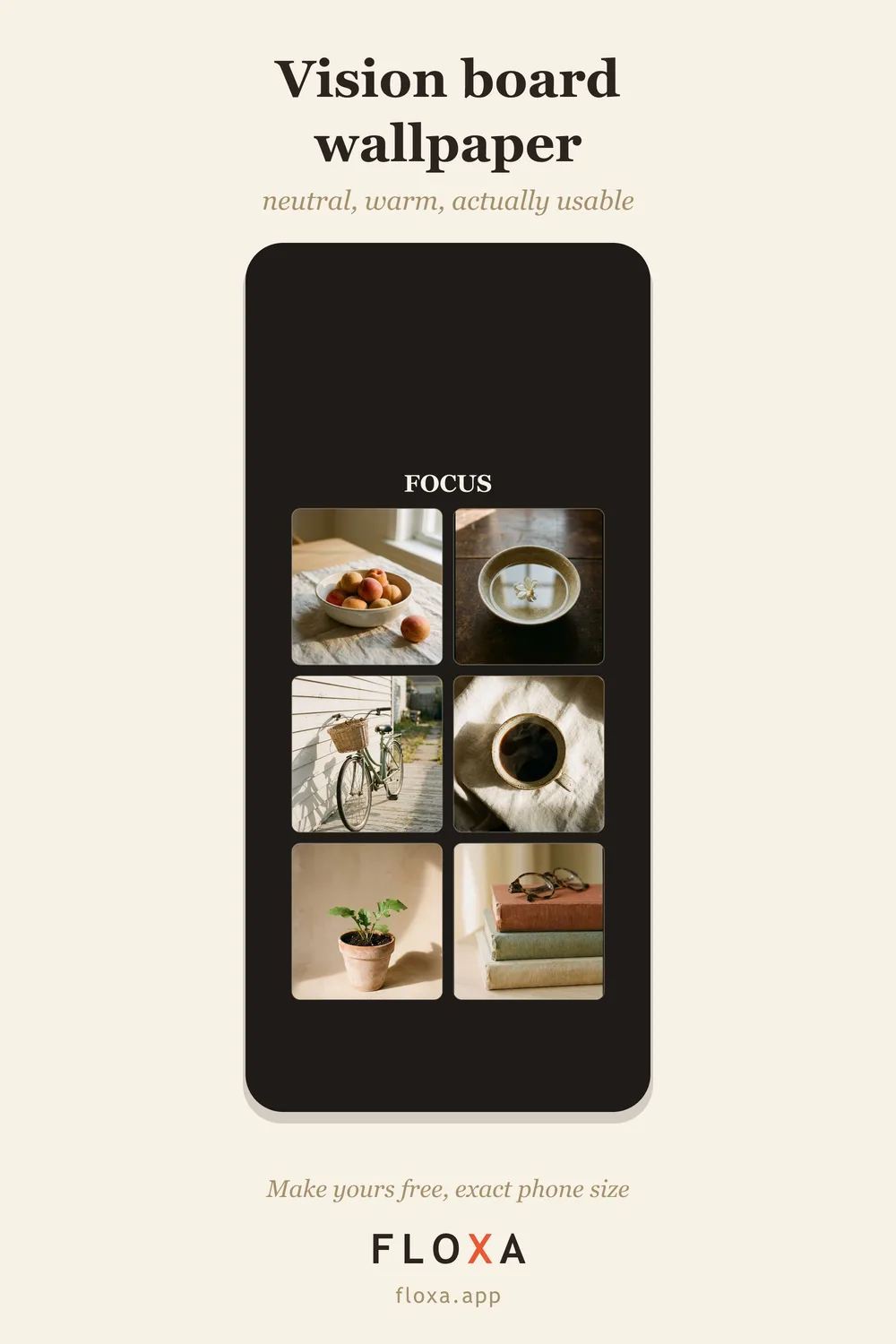
If you want the exact pixel sizes for every iPhone model and what the clock band covers, the iPhone wallpaper size post has the table. Floxa is a fan-made tool inspired by The Simpsons and is not affiliated with Fox or Disney.
Questions people actually ask
Can I make a photo collage on an iPhone without an app?
Yes, in Safari. Open the generator, tap each of the 11 slots, pick a photo from your library, download the PNG. No app, no account, about five minutes, and the photos never leave the phone.
Do HEIC photos work in a collage maker?
Here, yes: an iPhone HEIC or HEIF file is converted to JPEG inside the browser the moment you pick it, so you never see an “unsupported file” error and never have to change the camera format.
Where does the collage go when I download it on iPhone?
Safari saves it to Files → Downloads by default. Long-press the image and choose Save to Photos if you want it in your library, or set it as a wallpaper from there.
Your camera roll is already the hard part done. Open it in Safari — free.