Vision Board in Google Slides or PowerPoint: Setup, Limits, and the One-Click Alternative
How to set up an 8×10 vision board in Google Slides or PowerPoint, why the export prints soft above 5×7, and when a deck is actually the right call. Or skip it: 25 styles, free, no account.
The short version: you can make a vision board in Google Slides or PowerPoint in about five minutes if you set the page to 8×10 inches first and build a 3×4 grid. The catch is the export: Slides tops out around 1920 pixels wide, so prints above 5×7 go soft. If you want the same board at 2400×3000 with the cropping done for you, the vision board maker does it free, no account.
This is a fair guide, not a takedown. Slides and PowerPoint are what a lot of people have open at 4pm on a Friday, and a vision board template for Google Slides is a perfectly good way to run a classroom or a workshop. Here is how to do it well, where it stops, and when it is genuinely the right call.

Why people make a vision board in Slides
Three honest reasons. It is already open. A teacher can hand thirty kids one template and collect thirty boards by the end of the period. And a board that is one slide in a bigger deck (a team offsite, a January planning session) belongs in the deck, not in a separate tool.
None of those go away. What goes away, usually, is the plan to print it.
The setup that avoids a blurry print
The default slide is 16:9, which is 10×5.625 inches in Slides. Printed, that is a wide strip that fits no frame you own. Change it before you add a single photo:
- Google Slides: File → Page setup → Custom → 8 × 10 inches. That makes it a 4:5 portrait, the shape of an 8×10 frame.
- PowerPoint: Design → Slide Size → Custom Slide Size → width 8 in, height 10 in, portrait.
- The grid: insert twelve image placeholders in a 3×4 grid. In PowerPoint, insert a picture, then Picture Format → Crop → Fill to make it fit the cell without squashing. In Slides, double-click the image to crop. You do this twelve times.
- The word: one text box, one word, along the bottom or the top edge. Not a quote; it will not be readable at wallpaper size anyway.
- Export: File → Download → PNG (Slides) or File → Export → PNG/PDF (PowerPoint). PDF for printing, PNG for a wallpaper.
Done properly, that is a real board and you should be pleased with it. Now the limits.
Where Slides and PowerPoint stop
Resolution. Google Slides exports PNG at 1920 pixels on the long side, no matter how big the page is. An 8×10 print from 1920 pixels is 240 dpi at best, and lower once the photos inside were downscaled on import. It looks fine on a screen and fine at 5×7; at 8×10 you start to see it, and on a wall you definitely do.
Cropping. There is no crop-to-cell. Every photo is resized and trimmed by hand, and the twelfth one is when most people decide the board is “good enough”.
Where the photos go. Slides and PowerPoint online store your photos on Google’s or Microsoft’s servers. That is fine for most people and most photos. It is worth knowing when the board has your bank target and your kids on it. The browser maker processes the photos locally and never uploads them.
Google Slides or PowerPoint vs the maker
| Slides / PowerPoint | Floxa | |
|---|---|---|
| Setup | Page size, grid, twelve manual crops | About 5 minutes, drop the photos in |
| Print resolution | 1920 px on the long side (Slides PNG) | 2400×3000 px, an exact 8×10 at 300 dpi |
| Cropping per cell | By hand, each photo | Automatic; move, resize or crop after if you want |
| Styles | One, the one you build | 25 styles, 11 palettes, 4 shapes |
| Account required | Google or Microsoft account | None |
| Photos uploaded | Yes, to their servers | No, processed in the browser |
| Cost | Free with the account | Free PNG; HD print file is a one-time purchase |
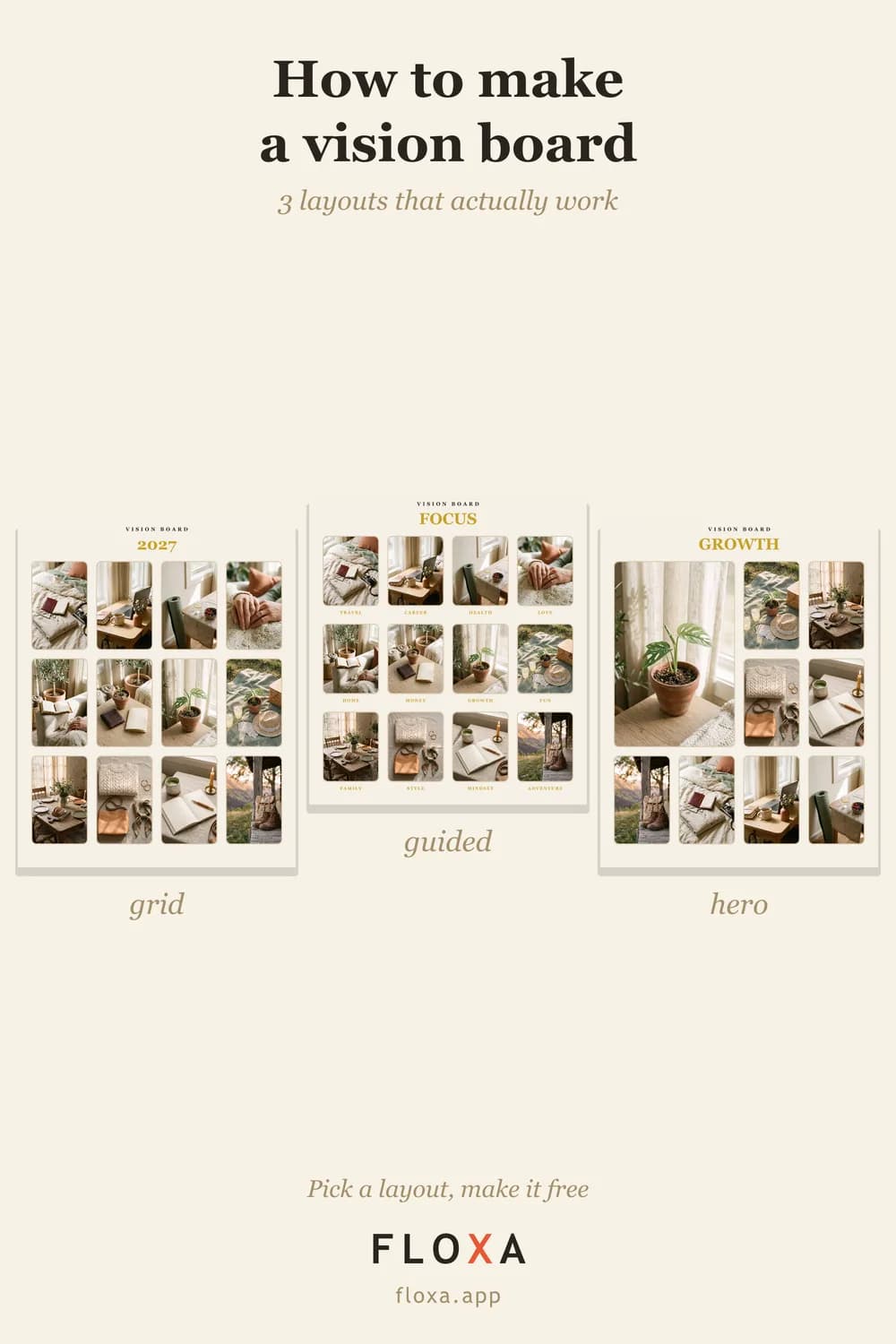
When Slides is actually the right call
A classroom of thirty on Chromebooks: Slides, no contest. Everyone has the account, the template goes out in one link, and nobody needs a print. A board that is one slide in a bigger deck: Slides, because it has to sit next to the other slides. A workshop where the point is the hour together, not the file: either, and a vision board party with actual scissors beats both.
For the board you personally will look at every day, the one with your photos and your number on it, the deck is the long way round. The digital vision board post covers the short way, and vision board size has the print sizes if it is going in a frame. If you have never built one at all, start with how to make a vision board.
Questions people actually ask
Is there a free vision board template for Google Slides?
Plenty, and you can build one in five minutes: set the page to 8×10 inches, add a 3×4 grid of image placeholders and one text box. The catch is the export, which tops out around 1920 pixels wide, so prints above 5×7 look soft.
How do I make a vision board in PowerPoint?
Design → Slide Size → Custom (8×10 in), insert a picture grid, one text box for your word, then File → Export as PNG or PDF. Crop each photo by hand with Picture Format → Crop → Fill.
What size should the slide be for printing?
8×10 inches (4:5) if it is going in a frame, or 9:16 if it is becoming a phone wallpaper. The default 16:9 slide prints as a wide strip that fits no standard frame.
Twelve manual crops or five minutes. Skip the deck — make it here, free.